Users
The Users section is where Administrator users can add, edit, or delete a user. After pressing the Users button, the administrator is brought to a screen with a list of users that is scrollable and searchable.
Each row corresponds to one user, with the user’s last name, first name, email, username, permissions, and fingerprint status displayed. The administrator can elect to delete a user by pressing the trash can icon or edit a user’s details by selecting a row. All Users created and edited for access on the AccuShelf, impact the access for the AccuShelf only. AccuSite access must be completed via the My.AccuSite Portal.
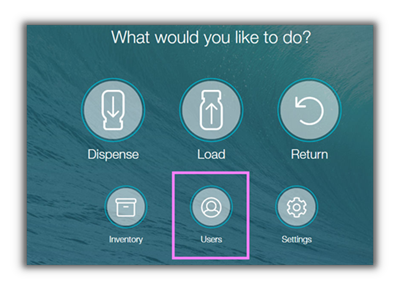
User Permissions (see also AccuShelf User Capabilities)
User Permissions determine the icons and associated actions available on the screen.
- Clinician users can Dispense, Return, and View only Inventory
- Loading Clinician users can Dispense, Return, View only Inventory, and Receive
- Administrator users have access to all actions, Dispense, Return, Manage Inventory, Receive, Users and Settings.
Create New Users
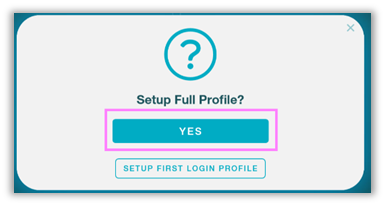
Selecting, Add New User, will create a new user profile. There are two ways to go about new user setup: Full Profile setup and First Login Profile setup.
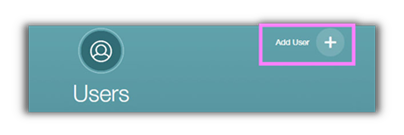
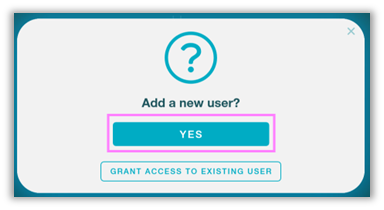
Full Profile setup (Ideal when Admin is with new User present at the unit)
Full Profile setup allows the administrator to enter all the user’s information at one time: the first name, last name, email (optional), username, password, fingerprint login, and permissions. Once these details are entered and saved, the user will be successfully created. This setup workflow is optimal if the user is at the AccuShelf with the Administrator, so they can enter their personal username and password and capture their fingerprint all at once.
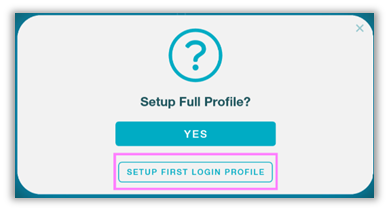
First Login setup (Ideal when Admin is creating profile without User present)
The First Login user setup allows administrators to create new, unfinished user profiles that can be completed by the user. This workflow gives the Administrator freedom to create profiles for their users without them present. When the administrator selects set up the first login profile, then enters first name, last name, email (if portal access is needed in the future), username, and permissions. Once saved, the new user uses their username for their first login. The user’s password is the same as their username, once both are entered the user is brought to the edit user screen.
At this point the user will be able to edit their first name, last name, email, and username (if needed) then enter their personal password and capture a fingerprint login (if desired). Once each of those are configured, the user can Save and continue to the Home Screen.
Edit Existing Users
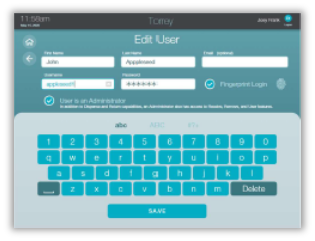
The Edit User screen lets an Administrator make changes to a user’s first name, last name, email, username, password, permissions, and fingerprint login status. Once a change is made, the administrator can press the Save button at the bottom of the screen to confirm.
Grant Access
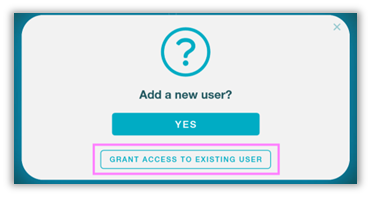
Granting access to an existing user will bring up a list of users that have access to other locations within the customer account. Selecting a user from this list will allow the administrator to grant access to that locations device for that user. This workflow is commonly used for floating nurses and users that transferred to a new location.
Add a Fingerprint for login
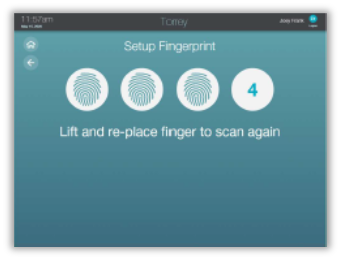
To capture a fingerprint, the user will place their finger on the scanner 4 times. Each time the fingerprint is captured, the AccuShelf will display the fingerprint image in the circle. Once all 4 captures are completed and saved, the user will be able to login via fingerprint scan. Note: the same finger must be used for all 4 captures.